Guide

The AutoFAS guide

Every feature of the app, with real screenshots and the steps to use it.

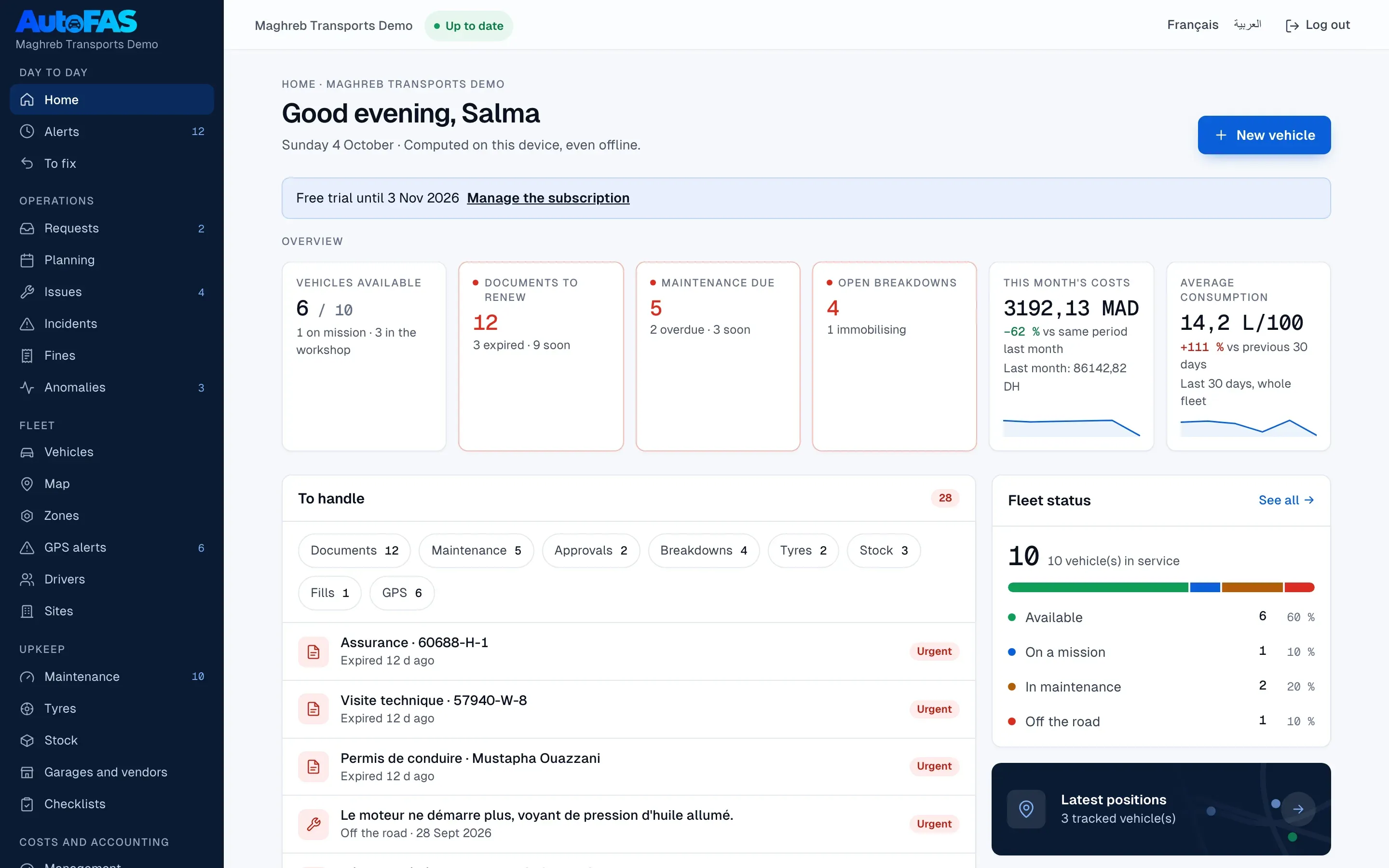
Fleet

Register your whole fleet and keep every vehicle up to date.

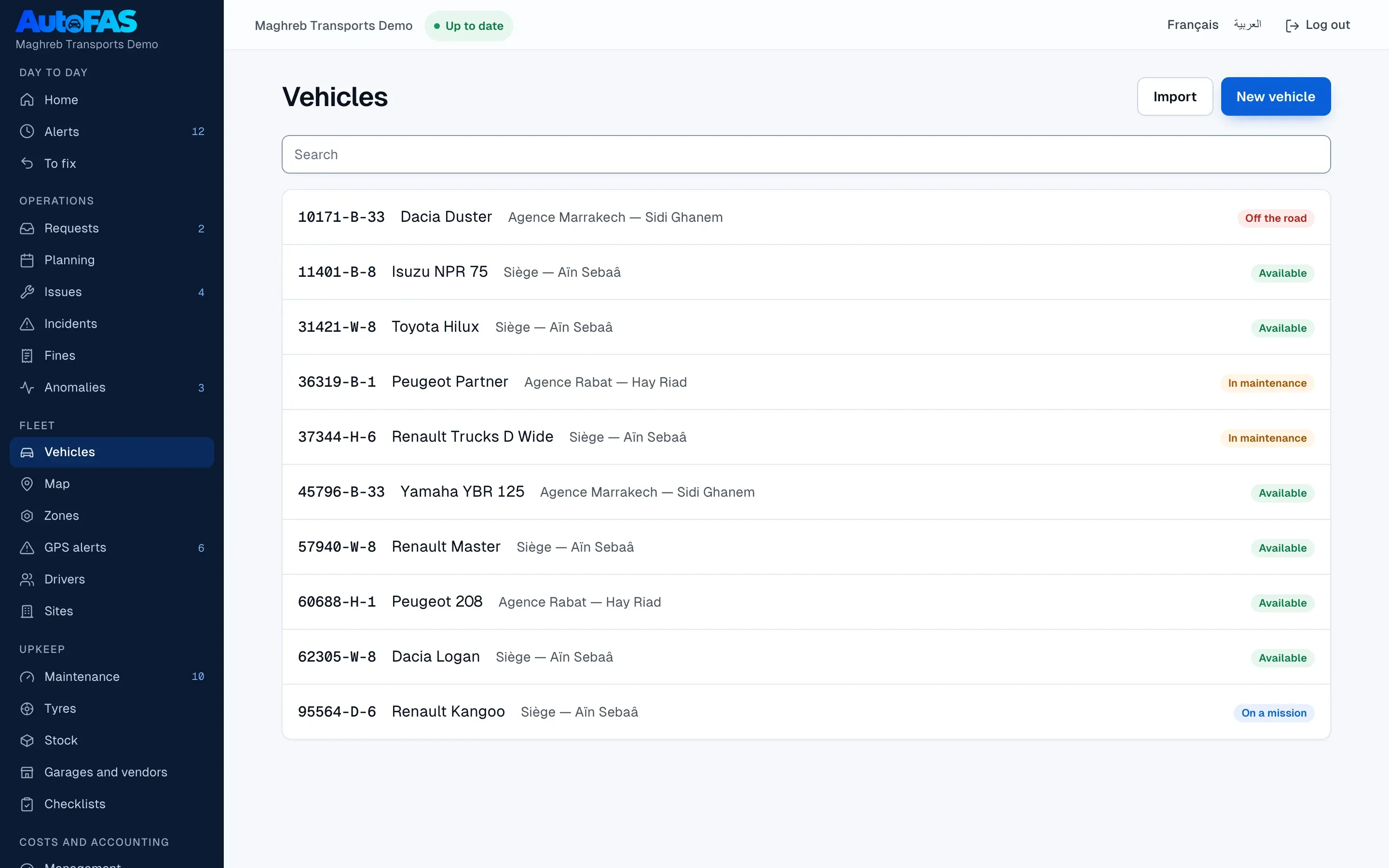
  1. Open Vehicles then New vehicle, or import the whole fleet at once from an Excel or CSV file.
  2. Fill in the plate, the site and the assigned driver; the assignment can change at any time.
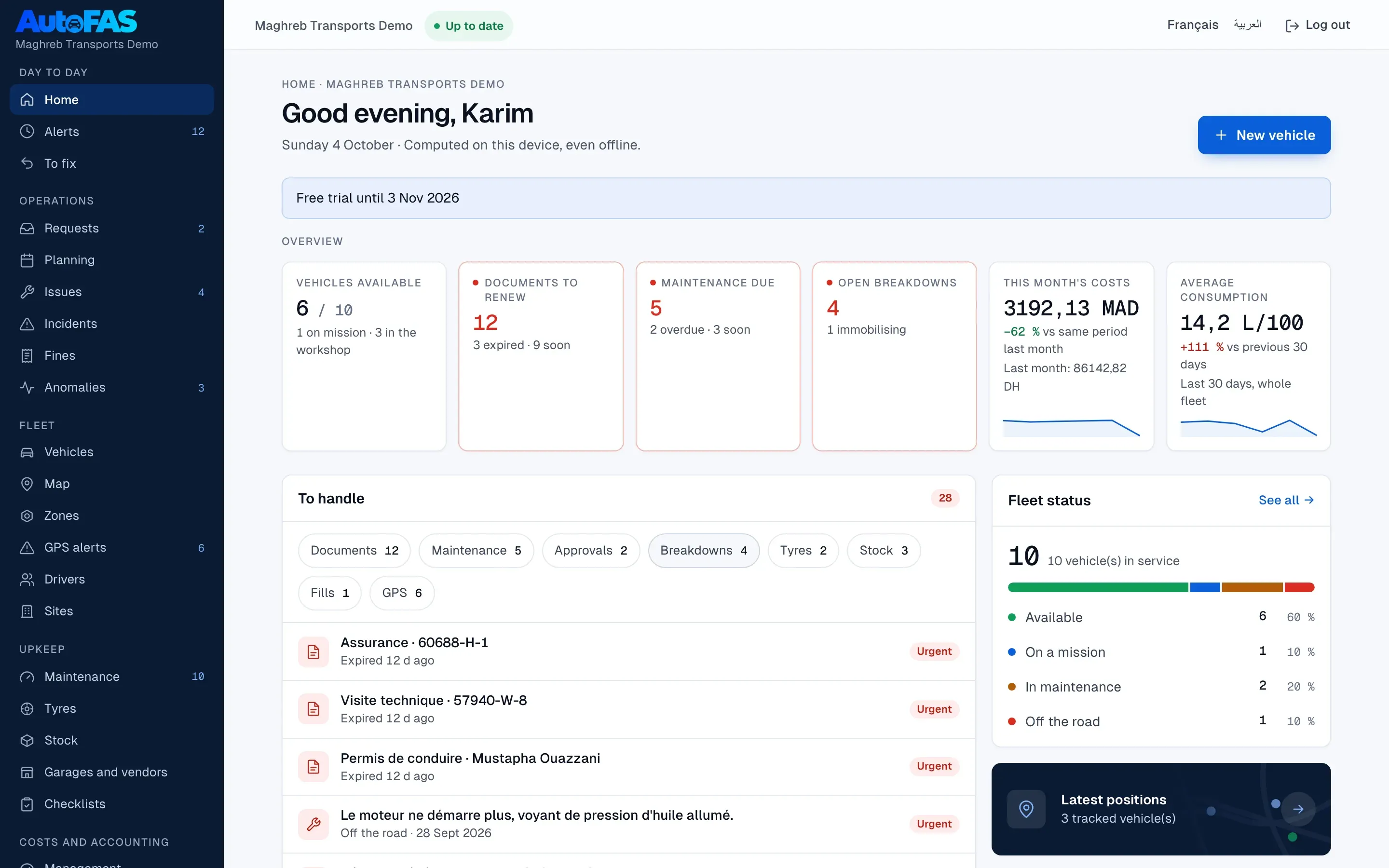
  3. The vehicle status (available, on a mission, in maintenance, off the road) is worked out on its own from breakdowns and open work orders.
  4. Open a vehicle record to find its documents, fuel, maintenance, tyres, incidents and costs in one place.
Fleet

Documents and compliance

Never miss a deadline again: insurance, vignette, technical inspection, licences.

  1. Add each document (insurance, vignette, technical inspection, registration, licence) on the vehicle or driver record, with its expiry date.
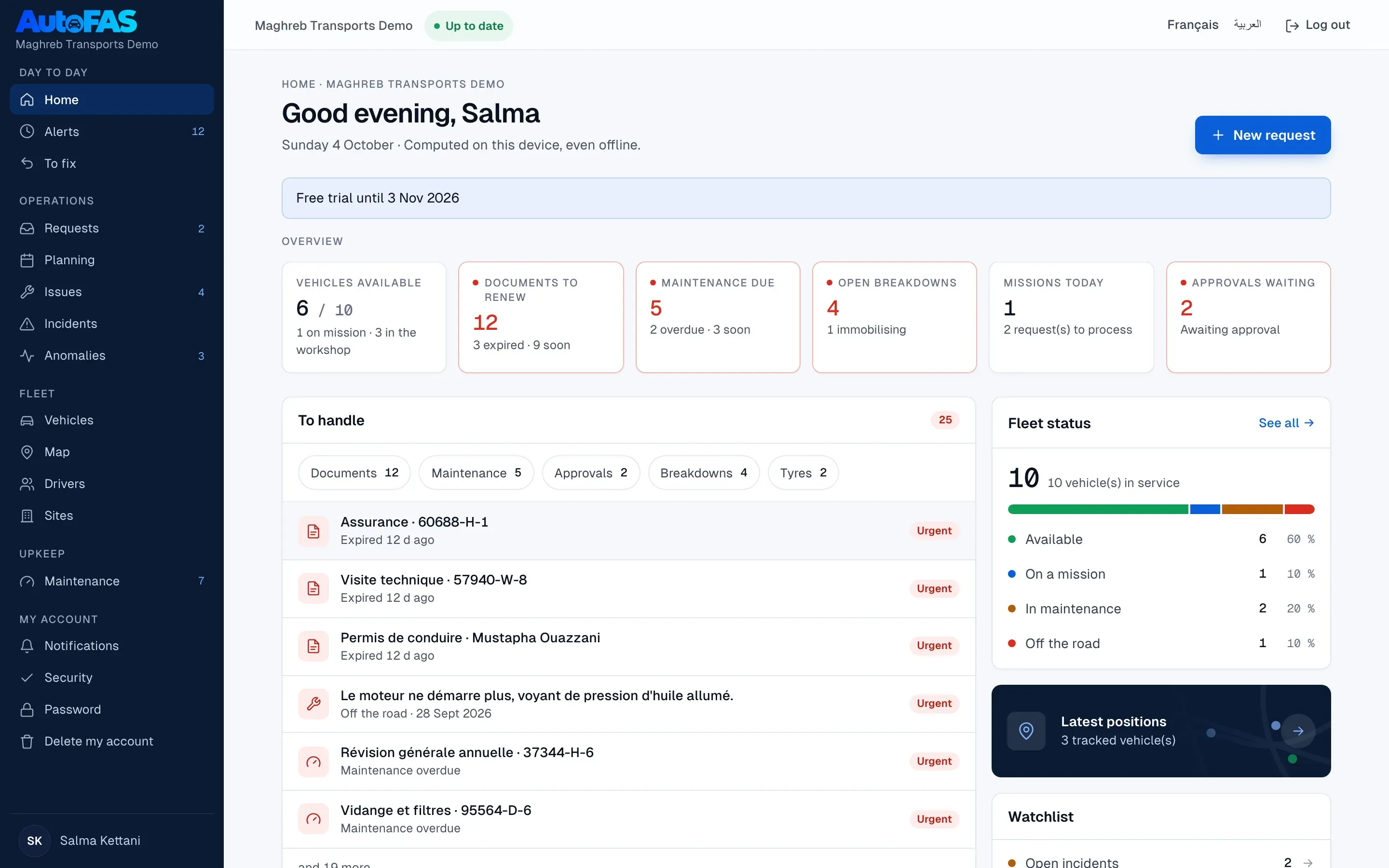
  2. The dashboard shows the documents to renew before they expire, ranked by urgency.
  3. Every morning at 7, an e-mail summary lists the deadlines coming up, for everyone concerned.
  4. An expired document stays visible and flagged until it is renewed: nothing disappears quietly.
Documents and compliance

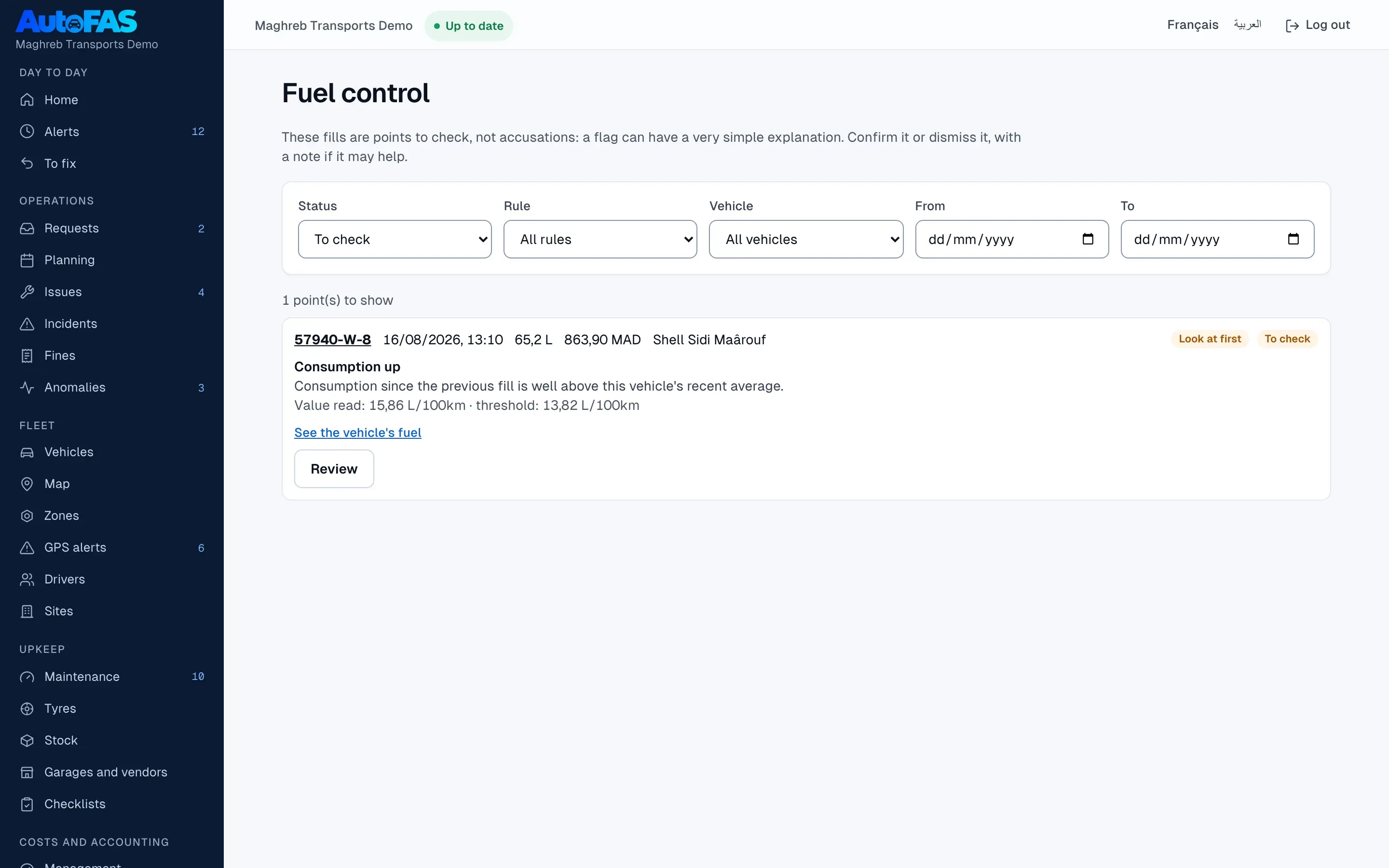
Fuel and mileage

Track every fill-up and every kilometre, and catch what looks wrong.

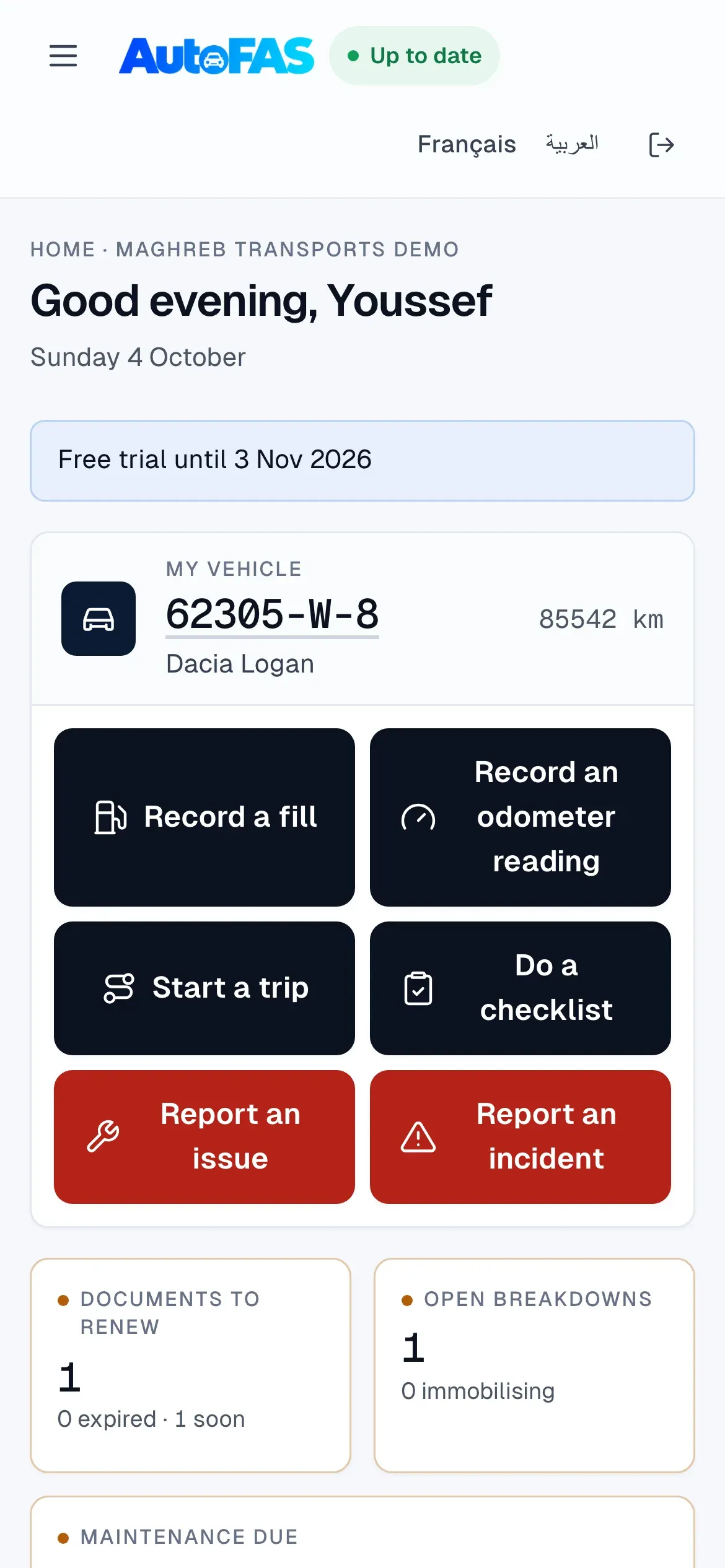
  1. Drivers record a fill-up or an odometer reading from their phone, even without network.
  2. Import your fuel-card statements: AutoFAS reconciles them automatically with the fill-ups entered.
  3. Seven rules re-read every fill-up and fuel-card line each night and flag what is off: a fill-up bigger than the tank, a duplicate entry, an inconsistent odometer reading.
  4. The trip log gives the real consumption of every vehicle, fill-up after fill-up.
Fuel and mileage

Maintenance and workshop

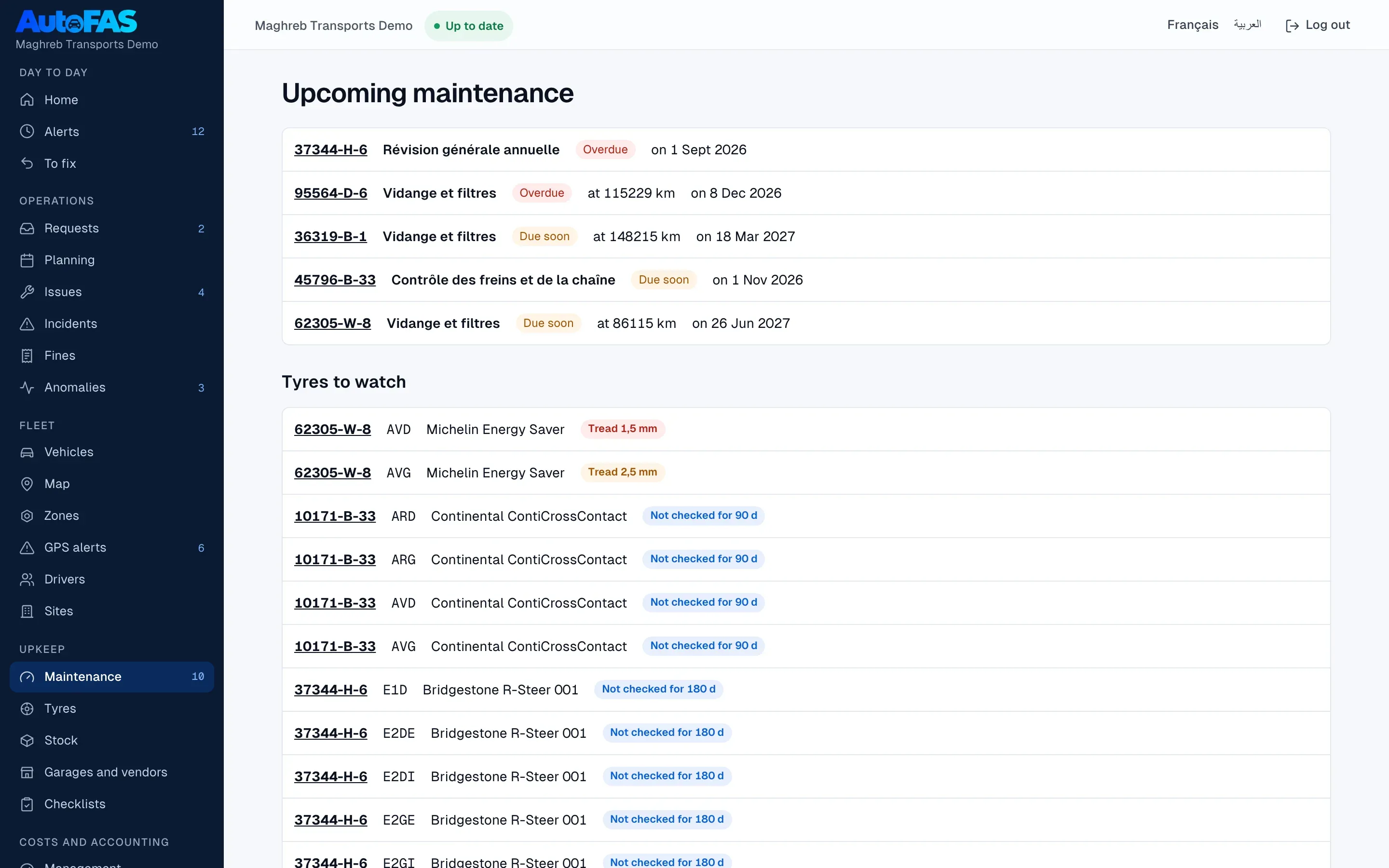
Maintain before the breakdown and track your work orders.

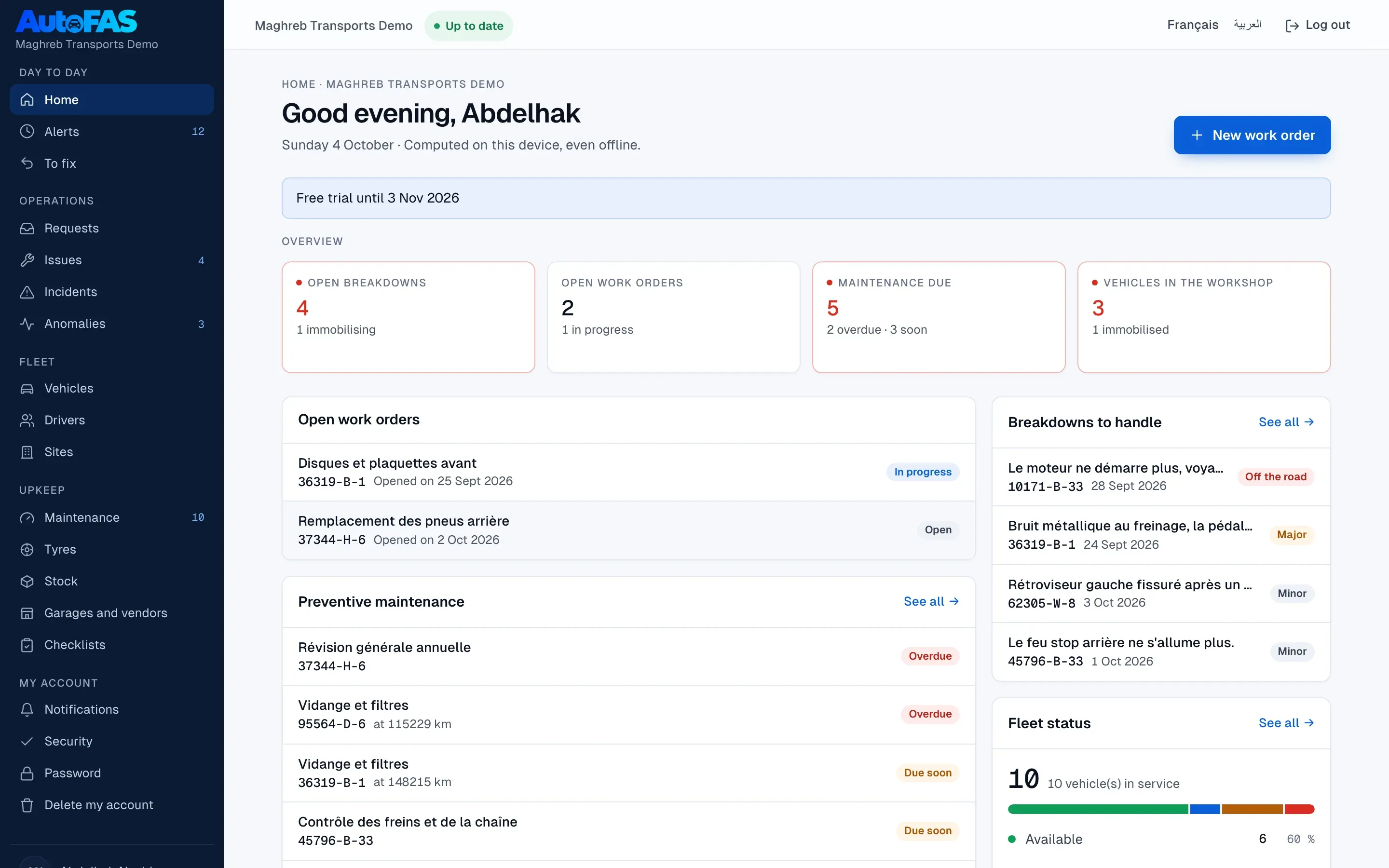
  1. Create a preventive maintenance plan by kilometre or by date: AutoFAS warns before it is due.
  2. A driver or a mechanic reports a breakdown; it becomes a work order at the garage you choose.
  3. Track your garages and vendors; parts fitted on a work order leave the stock on their own.
  4. Tyres (journal, state, alerts) and inspection checklists are tracked from the same place.
Maintenance and workshop

Trips

Organise vehicle requests and avoid planning conflicts.

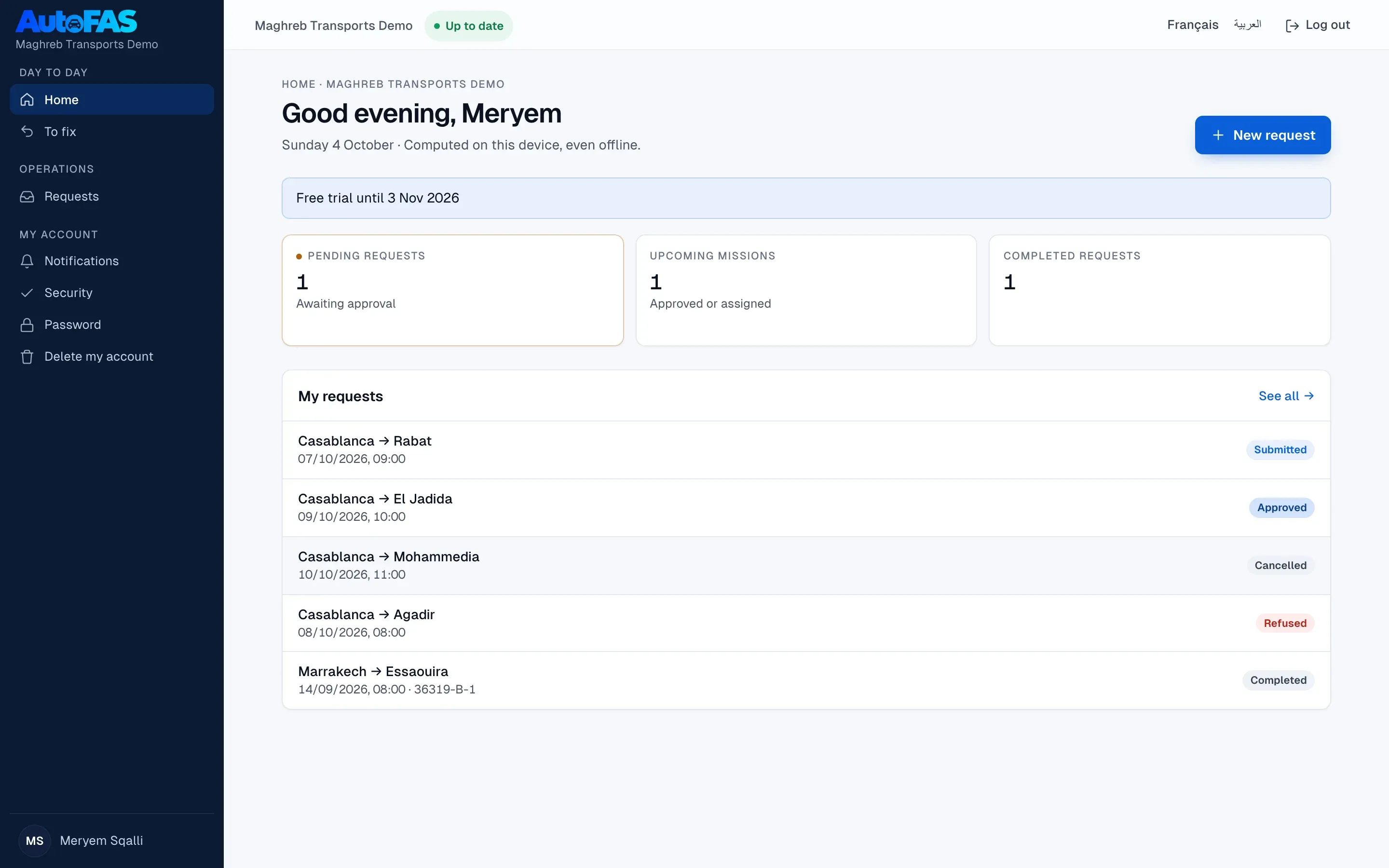
  1. A requester creates a trip request with their dates, their reason and the vehicle they need.
  2. The movement manager approves or declines, then assigns a vehicle and a driver.
  3. The planning flags any conflict before it happens, for example two missions on the same vehicle at the same time.
  4. An incident or a fine during a mission attaches directly to the driver concerned.
Trips

Costs and accounting

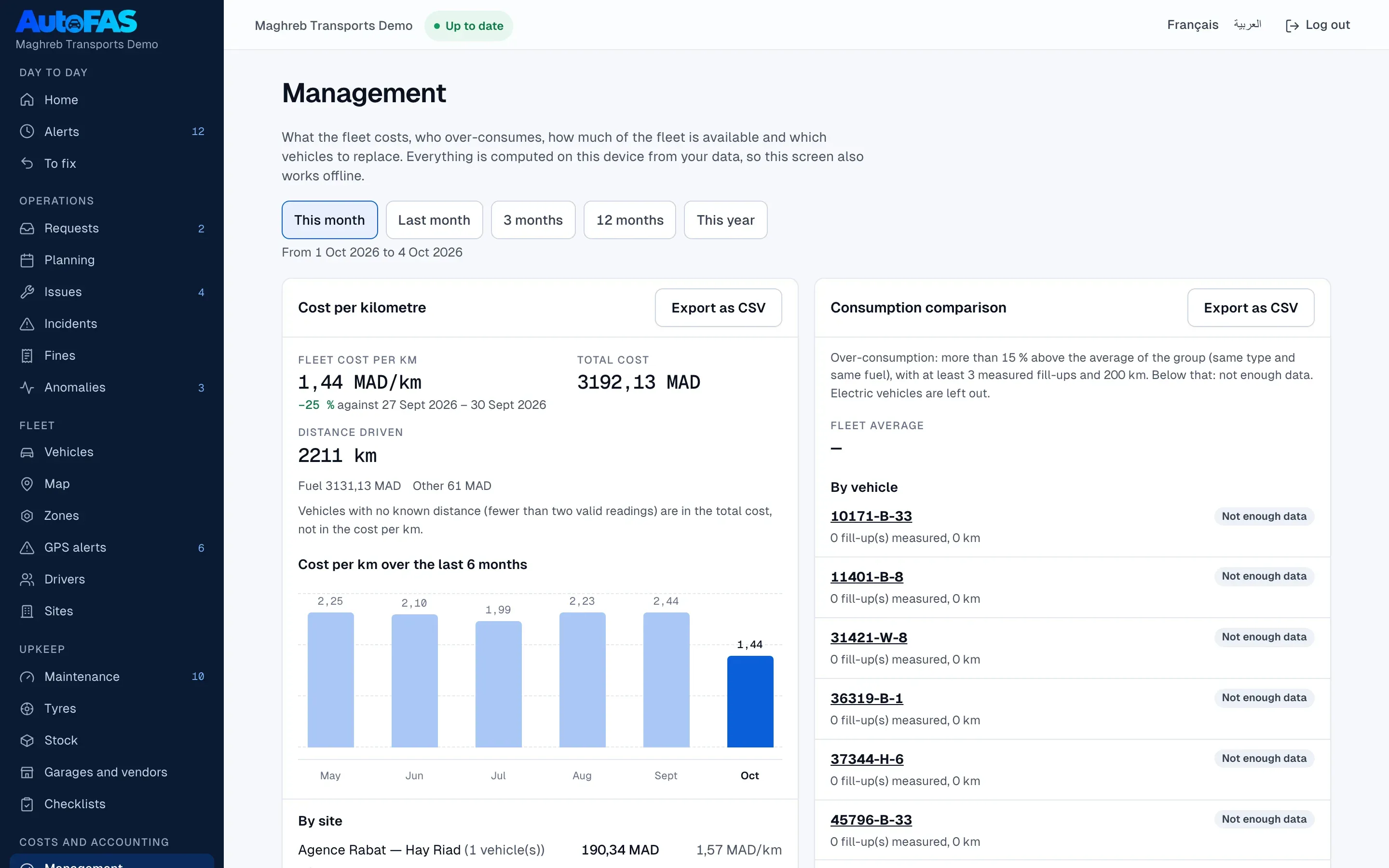
Know what every vehicle really costs, and export your figures.

  1. Record one-off and recurring costs on each vehicle: insurance, leasing, parking and more.
  2. The management dashboard shows cost per km, consumption, fleet availability and the vehicles to replace.
  3. Export your costs and reports to Excel or PDF, in French, Arabic or English, following the device’s language.
  4. The accounting export groups entries into numbered batches, with any reversals.
Costs and accounting

GPS and telematics

Locate your vehicles and set up zones and alerts.

  1. Install the Traccar Client app on the driver’s phone, or connect a tracker you already own if it speaks the OsmAnd protocol.
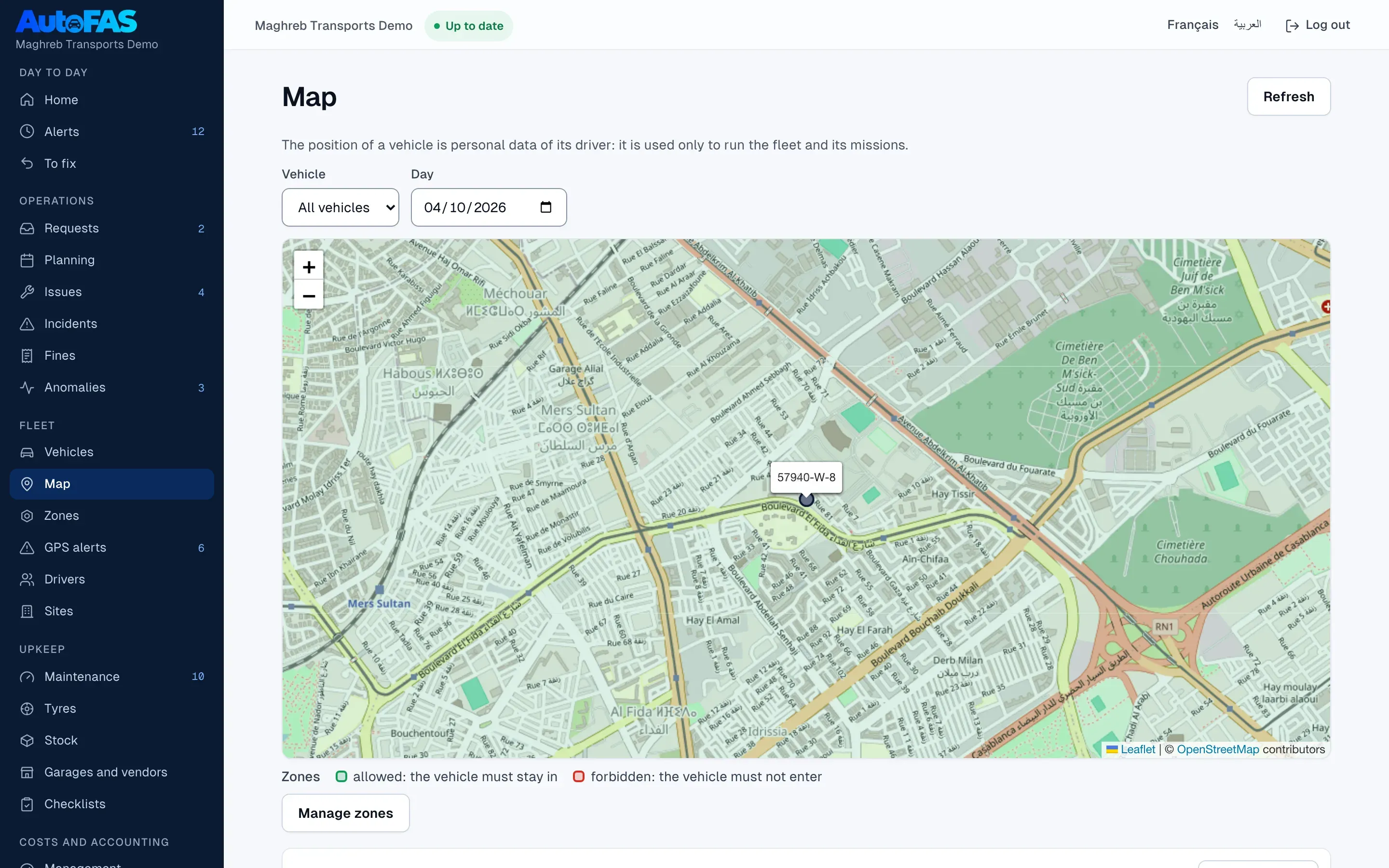
  2. The map shows the position of every equipped vehicle, and AutoFAS rebuilds its trips automatically.
  3. Draw allowed or forbidden zones: leaving a zone triggers an alert.
  4. Get an alert for speeding or for a trip outside allowed hours.
GPS and telematics

Accounts and security

Open access to your team, with the right role for each person.

  1. Invite a colleague by e-mail and pick their role from the six available: administrator, fleet manager, movement manager, mechanic, driver, requester.
  2. Everyone sees only what concerns them: a driver doesn’t see costs, a mechanic doesn’t see billing.
  3. Turn on two-factor authentication for sensitive accounts, and find every action in the audit log.
  4. Track your subscription (plan, vehicle count, current period) from the account settings.
Accounts and security

What each role sees day to day

The same data, but everyone sees only what concerns them.

Mechanic

Mechanic

  • Receives breakdown reports and turns them into work orders.
  • Tracks tyres and takes parts out of stock directly from the work order.
  • Closes the order once the vehicle is fixed; its status goes back to available on its own.
Movement manager

Movement manager

  • Approves or declines vehicle requests, with a reason for the decision.
  • Assigns a vehicle and a driver, and watches the planning to avoid conflicts.
  • Reports an incident or a fine that happened during a mission.
Fleet manager

Fleet manager

  • Keeps an eye on the whole fleet: documents to renew, maintenance due, this month’s costs.
  • Decides, from the management dashboard, which vehicles to replace and when.
  • Exports reports for management or accounting.
Driver

Driver

  • Records a fill-up, an odometer reading, a checklist or a breakdown from their phone.
  • Keeps working without network: everything syncs once the connection is back.
  • Sees right away if an entry was refused, and why.
Requester

Requester

  • Requests a vehicle for a mission, with their dates and their reason.
  • Follows the status of their request: pending, approved or declined.
  • Finds the history of every past request.
Administrator

Administrator

  • Invites users and picks their role.
  • Turns on two-factor authentication and checks the audit log.
  • Manages the company’s subscription and settings.

Ready to try AutoFAS on your fleet?

Your workspace is ready in minutes. Import your vehicles from Excel and invite your team.